1. AP Count Is Not a Guess: Let the On-Site Numbers Decide
Last year we carried out a wireless upgrade for a packaging and printing plant in Shunyi. The workshop had a 6-meter ceiling, printing press units in the middle, and finished-goods storage areas around the perimeter. The client initially said, “Four APs should be enough, right?” I ran a simulation with WiFi Planner and recommended eight. The owner was skeptical, but the final measurements showed that the area with signal strength of -55dBm or better rose from 62% to 91%, and the ping packet loss rate on clients dropped from 8% to 0.3%. What made the difference was not magic — it was physics.
A common mistake among SMBs is guessing based on “one AP per 100 square meters.” The reality is far more complex. For light-load office scenarios (web browsing, email, occasional video conferencing), one AP per 150–200 square meters is generally sufficient; but if your scenario involves high-density meeting rooms (30 people screen-sharing at once), warehouse barcode scanners (dense low-power clients), or metal equipment blocking signals on a factory floor, that number must be cut to one AP per 80–100 square meters.
Here is a simple on-site estimation method: install WiFi Analyzer on your phone, walk around the target area, and measure the proportion of the area where signal strength falls below -70dBm. If it exceeds 20%, you need to add APs or adjust their placement. Those “signal black holes” below -80dBm will drop connections frequently even when connected, making for a terrible user experience. When renovating factories, pay particular attention to signal attenuation caused by metal shelving: each metal partition the signal passes through costs 10–15dBm. Many sites appear to have adequate AP density, yet barcode scanners deep inside the warehouse simply cannot connect.
2. Roaming Handover: Don’t Let 802.11r/k/v Become Decoration
Roaming problems are the most common “abandoned project” I have encountered. The client spends heavily on enterprise-grade APs, yet when an employee carries a laptop from their desk to the break room, the WiFi drops, they reconnect manually, and they grumble. A quick check reveals that 802.11r Fast BSS Transition is not enabled on the AC controller, leaving roaming decisions entirely up to the client — no wonder it performs poorly.
Let’s start with the principles. 802.11k is Radio Resource Measurement, which lets the AP proactively tell the client, “The neighboring AP has a better signal — consider roaming.” 802.11v is Network-assisted Power Savings, which helps clients optimize power consumption while guiding roaming. These two are supporting mechanisms. What truly makes roaming fast is 802.11r, which eliminates the full 4-way handshake during roaming and directly inherits the FT (Fast Transition) key, compressing handover time from 200–500ms to under 50ms.
In practice, all three protocols should be enabled at the same time, and the RSSI difference between APs must be set sensibly. I typically set the roaming trigger threshold between -65dBm and -70dBm, with a difference of 15–20dBm triggering roaming. Too sensitive, and clients switch constantly, causing a ping-pong effect; too sluggish, and clients cling to the original AP, stubbornly holding on even when the signal has dropped to -75dBm.
3. Channel Reuse: 2.4G Is No Longer the Preferred Battleground
Anyone who has done a wireless site survey knows how congested the 2.4GHz band is. At a warehouse in a logistics park in Daxing, WiFi from three surrounding villages, Bluetooth speakers, and walkie-talkies all crowd into 2.4G; I scanned more than 20 man-made interference sources with a spectrum analyzer. 2.4G has only 3 non-overlapping channels (1/6/11), and the reuse cycle is absurdly short.
My recommendation: whatever can run on 5G should run on 5G. In China, 5GHz has 13 non-overlapping channels (149/153/157/161/165 for indoor use, plus 36/40/44/48/52/56/60/64), and the channel reuse cycle is more than four times that of 2.4G. If a client supports 802.11ac/ax, connect it to 5G first — both speed and stability are a notch better.
In practice, 5GHz has its own pitfalls. The four channels 36/40/44/48 are low-power indoor channels (≤23dBm), suitable for small offices; 149/153/157/161 are standard-power indoor channels (≤30dBm) with better wall penetration, suitable for warehouses and large open spaces. Note, however, that some domestically produced AP hardware restricts the channels available in China — be sure to confirm before purchasing.
- First scan the site with WiFi Analyzer or a spectrum analyzer and mark the channels of all interference sources.
- Use only channels 1/6/11 on 2.4G, and adjacent APs must not share the same channel.
- On 5G, prefer channels not occupied by nearby APs to reduce co-channel interference.
- Keep at least 20MHz between the channels of adjacent APs to avoid self-interference caused by insufficient adjacent-channel rejection.
- Set AP transmit power so the edge of signal coverage stays between -65dBm and -70dBm, avoiding neighbor-area interference from excessive signal strength.
4. Client Capacity Assessment: An AP Is Not a Router
Many clients treat APs as routers, and the result is that everything freezes once concurrent clients pile up. Last year at a co-working space in Tongzhou, 60 workstations were covered by 6 APs — theoretically sufficient, yet at peak hours everyone reported speeds as slow as a snail. A packet capture on site revealed that one AP was associated with 47 clients, while its recommended concurrent capacity was 30.
AP capacity has two dimensions: the number of concurrent clients on the wireless side and throughput on the wired side. Consumer-grade APs claim “supports 64 clients,” but that refers to the physical association count; the number that actually works stably is generally half that. Enterprise-grade APs fare better, but the chipset matters too. The Realtek RTL8832 series and Qualcomm IPQ6018 are currently mainstream: the former offers good value but heats up noticeably under high load, while the latter is more stable but costs about 30% more.
One more often-overlooked point: the distribution of client types. If your scenario involves large numbers of low-power IoT devices (sensors, barcode scanners), the AP must process a large volume of management frames, consuming CPU resources; if it involves HD video conferencing, throughput is the bottleneck. Last year we carried out a wireless upgrade for a factory in Changping. The 200 barcode scanners on the production line were all 2.4G low-power clients, with 40 associated to each AP, and 8 APs ran stably. But swap them for phone and tablet video clients, and 30 of them could max out an AP. When assessing capacity, don’t look only at the number of clients — look at the type of traffic as well.
5. Common Coverage Dead Zones: Where Things Most Often Go Wrong
Elevator shafts are a classic dead zone. A metal elevator car acts like a Faraday cage — signals go in and never come out. There are two solutions: run feeder cable inside the elevator shaft with a log-periodic antenna, or install an in-car AP on top of the elevator car with mesh backhaul between APs. The cost differs threefold while the results are similar — it comes down to budget.
Restrooms are also a frequent source of complaints. The most extreme case I have seen was a restroom in an office building in Shunyi just 8 meters from the nearest AP, but with two concrete walls and one glass wall in between, signal attenuation exceeded 25dB, measuring -78dBm in practice. In newly renovated projects, a dedicated wall-plate AP is usually added in restrooms, but for older projects the only option is adjusting the main AP’s directional angle to cover them.
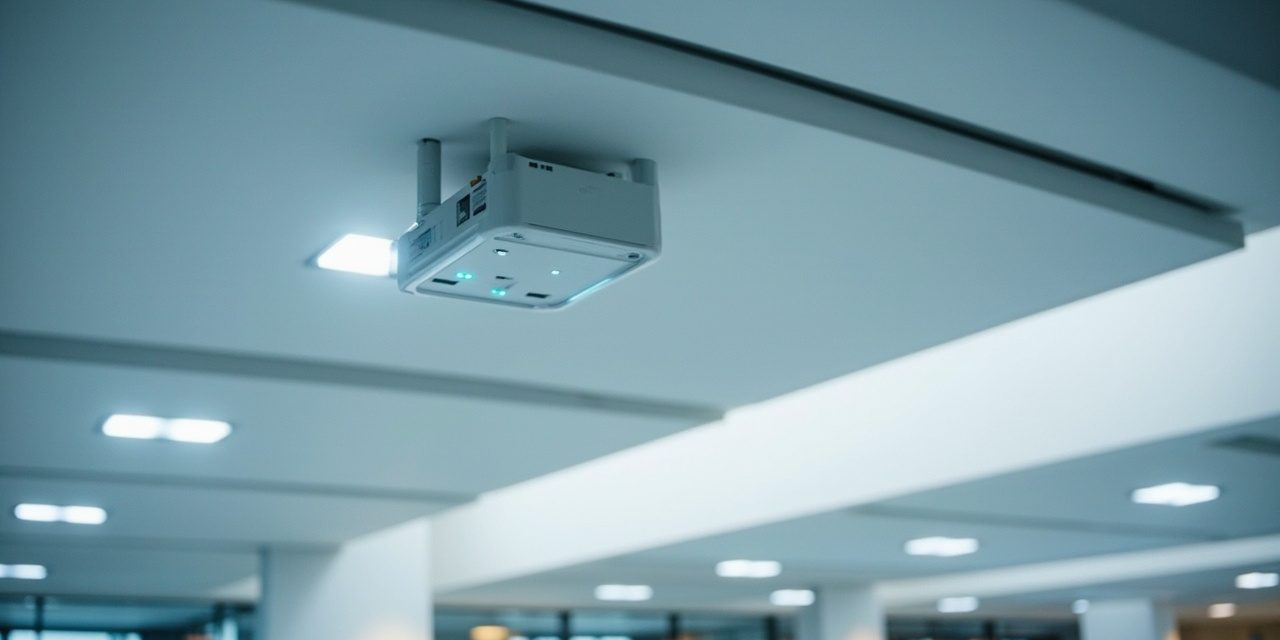
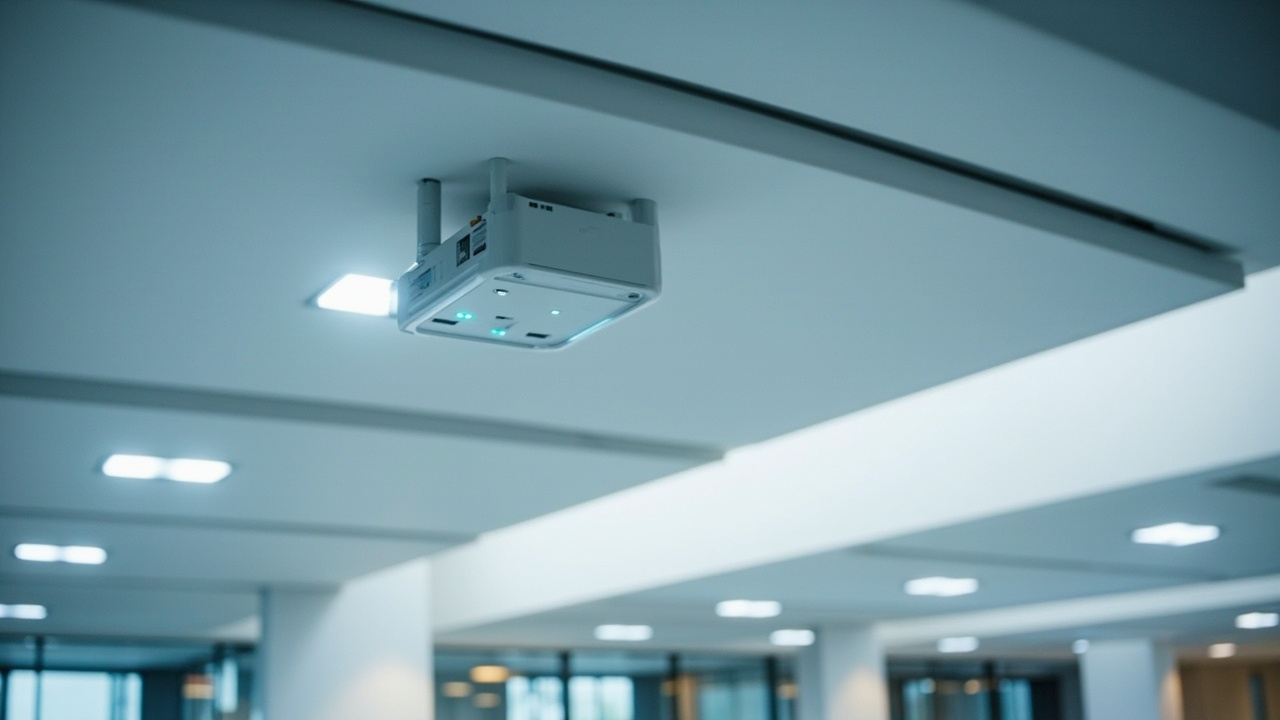
Stairwells and fire escapes are often blind spots. Nobody normally uses the internet in these areas, but employees often step there to take calls or check messages, only to find the WiFi has dropped when they walk out — a poor experience. The solution is to install a ceiling-mounted AP at the stairwell corner, covering the stairwell while also serving the floors above and below.
Workstations behind metal filing cabinets are another trap. Last year we optimized the wireless network for a law firm in Shijingshan. The partner’s office had consistently poor signal, and everyone assumed there were not enough APs — three more were added with no improvement. A field measurement later revealed that the entire wall behind his desk was a wooden bookshelf packed with metal archive boxes; the signal had to pass through over 200 kilograms of sheet metal and was mostly attenuated away. In the end, moving the AP to the side of the filing cabinet jumped the signal strength from -82dBm to -58dBm.
For SMBs, the advice is this: a wireless network is a systems engineering project, not a matter of buying a few APs and plugging them in. If your scenario is complex (multiple floors, factory buildings, special business requirements), we recommend a wireless site survey first — let the data speak, and avoid the cycle of “add an AP — still not enough — add another AP.” If you are planning a wireless upgrade, take a look at our Network Equipment Package. Siwenlide provides a one-stop solution from survey and design to equipment delivery, with equipment provided free of charge during the contract term and dedicated staff on hand to respond when issues arise. We have extensive on-site upgrade experience, with reference cases in Shunyi, Changping, and Yizhuang — we have already stepped in the pits for you.
Is your Beijing enterprise IT hitting a bottleneck? Siwenlide’s holistic solutions — 14 years, 1,000+ clients — are ready for your inquiry.
☎ 400-686-2011 · 📍 Room 3-1002, 9F, Building 3, No. 1 Huihai South Road, Beijing Airport Economic Core Zone · Contact us
※ During the contract term, we also include enterprise broadband or a private line, keeping your business connection more stable.