This article uses ESXi 6.7 and Synology NAS 6.x as examples.
First, enable the NFS service on the Synology NAS; it is disabled by default. The steps are as follows.
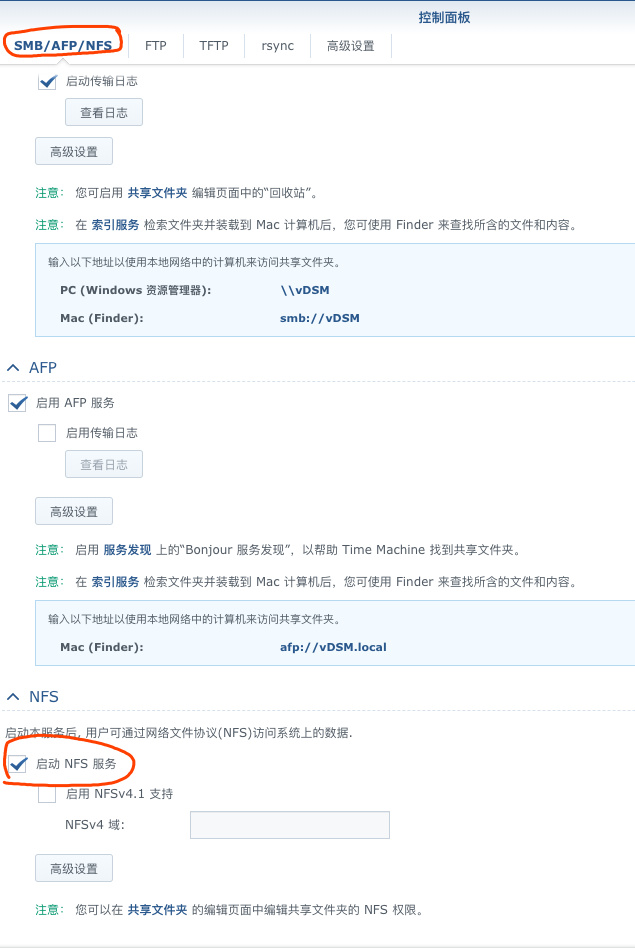
1. In DSM, go to Control Panel > File Services > SMB/AFP/NFS, and check Enable NFS service.
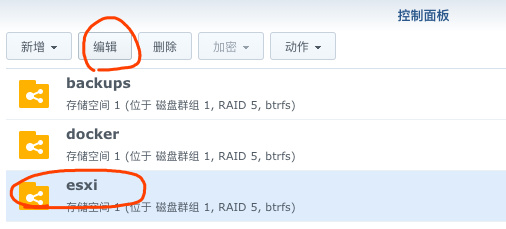
2. In Control Panel, go to Shared Folder, select the folder you want ESXi to use, and click Edit.
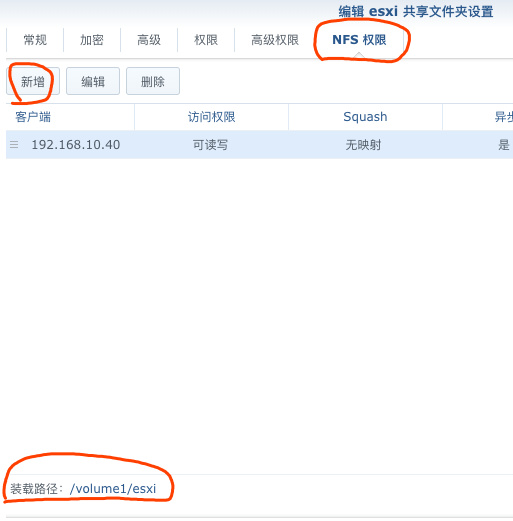
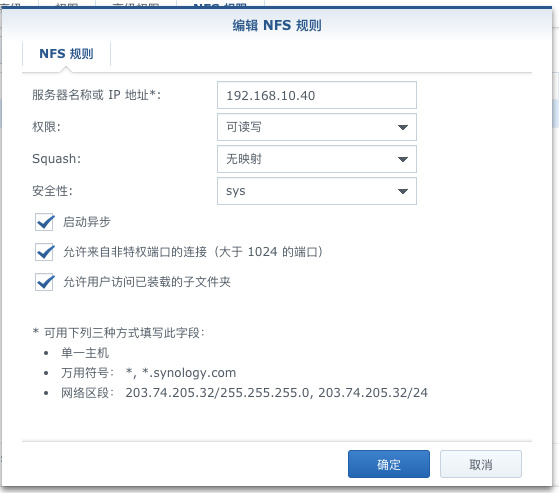
3. Then select NFS Permissions, click Create, and note down the mount path.
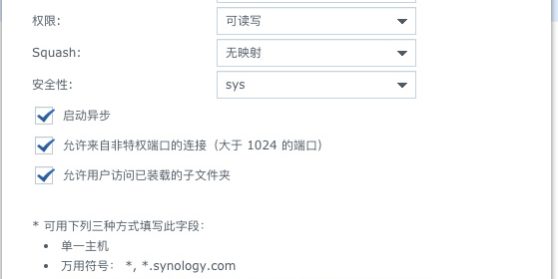
4. Enter the IP address of the ESXi host and set the permission to Read/Write.
Then add an NFS datastore on the ESXi host. The steps are as follows.
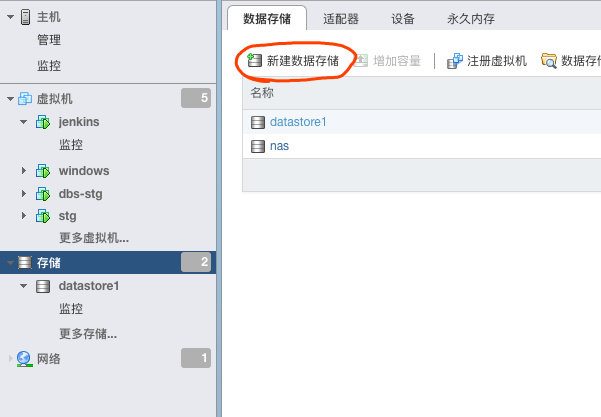
1. In the ESXi web console, go to Storage > Datastores, and click New Datastore.
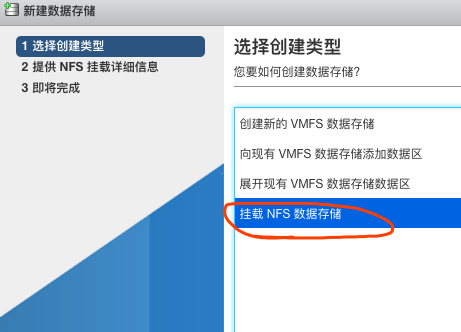
2. Select Mount NFS datastore.
3. Enter the IP address of the NAS and the mount path.
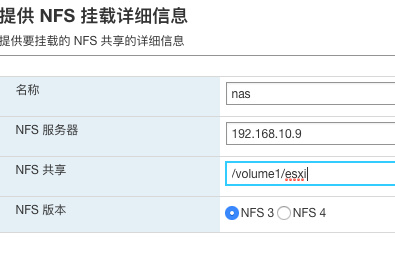
Once the mount is successful, the NAS you just added will appear in Datastores.