By default, Windows Server 2016 cannot view or preview images. Siwenlide shows you how to enable it using the following steps:
1. Press Win+R to open the Run dialog, type regedit and press Enter to open the Registry Editor.
2. In the Registry Editor, navigate to HKEY_LOCAL_MACHINE\SOFTWARE\Microsoft\Windows Photo Viewer\Capabilities\FileAssociations
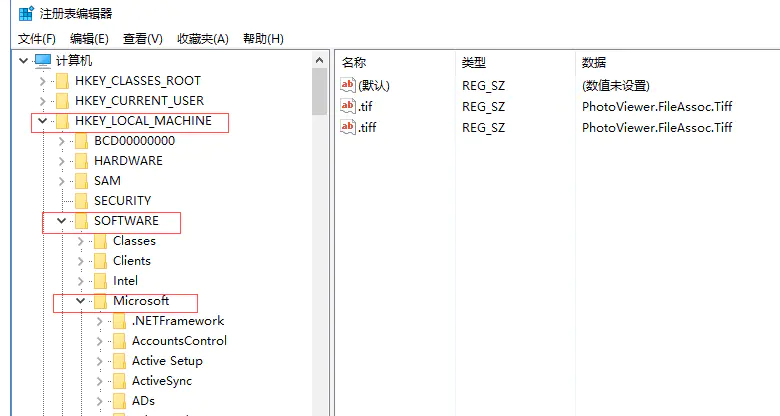
3. In the right pane, create a new string value.
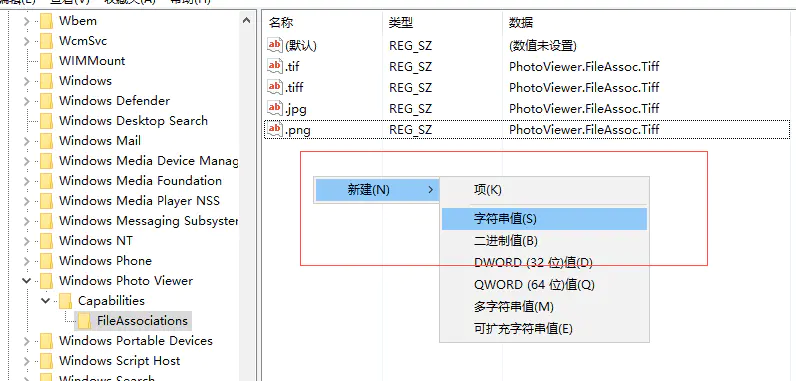
Create two entries, .jpg and .png, both with the value PhotoViewer.FileAssoc.Tiff
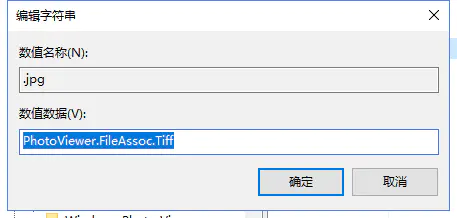
You can then view .jpg and .png images with Photo Viewer.

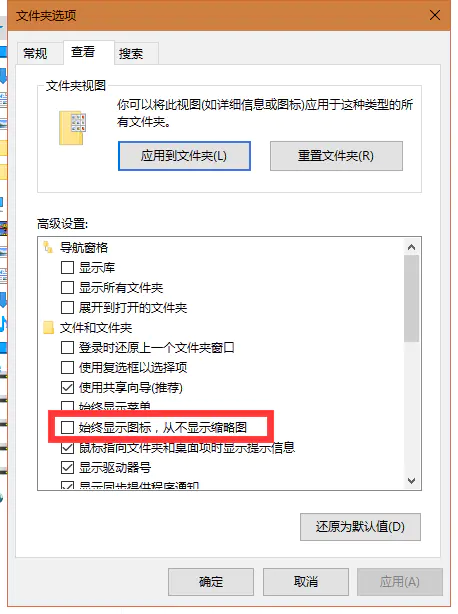
Folder Options – View – clear the check box for “Always show icons, never thumbnails”:
————————————————