How to Install the General Availability Release of Win11
On October 5, 2021, Microsoft released Windows 11 to general availability, bringing a host of new features; Windows 10 users who meet the hardware requirements can now upgrade.
Win11 Why the upgrade matters and what’s new in the system
- Support for Android apps is coming, and is expected to arrive within a few months
- An all-new UI and sound design make the system more modern, cleaner, and more attractive, with a distinctly refreshing feel.
- In the Start menu and within it, Win11 uses the cloud to successfully sync the documents you have viewed across all your devices.
- Snap Layouts, Snap Groups, and virtual desktops let you handle multiple tasks at once, making better use of your screen space.
- AI-powered, personalized widgets give you a quick view of the information you care about.
- With support for technologies such as the DirectStorage API and Auto HDR, Win11 can unlock your hardware’s full potential for a better Windows PC gaming experience.
- A redesigned Microsoft Store makes it easier to search for and discover the apps, games, shows, and movies you want.
- Windows 11 further improves accessibility features specifically for people with disabilities.
- The new system is friendlier to developers, offering new development tools, improved workflows for native and web apps, and faster ways to adapt app interfaces to the new system.
- PC speed and efficiency have been optimized, and the touchscreen, stylus, and voice input experiences have been improved.
- Windows 11 is secure by design, with IT deployment and management that are both simple and familiar, delivering a safer and more comfortable new way to work.
Win11 Does Win11 support Android apps, and when will it?
Android app support is not yet available, but the relevant tooling has already appeared in the Microsoft Store. The feature will be released in preview to Windows Insiders over the coming months. At that point, Microsoft will be able to deliver Android app support via OTA, and users will also be able to download and use a variety of mobile apps through the system store.
Win11 Which devices can upgrade, and can unsupported devices be force-installed?
Microsoft’s Windows 11 requirements center mainly on the processor: a 1 GHz or faster 64-bit processor (dual-core or multi-core) or a System on a Chip (SoC). In practice, however, only some of the models on the list can upgrade.
Other models can still be installed through certain workarounds, but they will not receive Windows 11 security updates or similar afterward. For this reason, upgrading low-spec machines to Windows 11 is not recommended: support for Windows 10 continues until October 14, 2025, which is safer than sideloading Win11.
Here is Microsoft’s official support list: Windows 11 supported AMD processors, supported Intel processors, and supported Qualcomm processors. You can also download the PC Health Check app to see whether your hardware is supported.
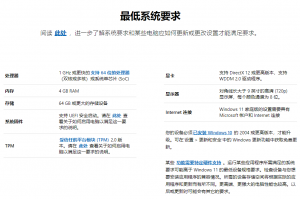
As things stand, a processor that does not qualify cannot get around the Win11 restriction unless Microsoft later relaxes the hardware baseline. If the Microsoft PC Health Check app tells you that you are blocked by TPM 2.0, check whether your motherboard supports fTPM; if it does, simply set the Secure Boot option to “enable.” If it does not, you may need to purchase a compatible module separately.
Beyond that, UEFI boot, 4 GB of memory, and a 64 GB drive are relatively easy to meet. Graphics cards and monitors are not restricted, though a GPU that supports DX12 and WDDM 2.0 drivers and a monitor of 9 inches or larger with 720p resolution and 8-bit color channels or better are recommended.
In other respects, Windows 11 Home users must be connected to the internet when setting up the system for the first time, or they cannot complete the OOBE process. Microsoft also recently pushed updates to Windows 10 2004, 20H2, 21H1, and 21H2 for Home and Pro editions; if you choose to upgrade to Win11 before completing OOBE, the upgrade will start on its own.
How to activate Win11
We recommend upgrading a PC that already has a Windows license; once the upgrade is complete, you still obtain a Win11 license. Those upgrading across editions may need to purchase a product key separately.
The relationship between the Dev and Beta previews and the general release
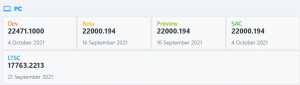
Put simply, the Windows Insider program has three channels: Fast, Slow, and Release Preview. The first two are the Dev developer preview and the Beta test build, while the last is almost identical to the general release. As update frequency decreases across the channels, stability increases accordingly, and users can join whichever they prefer.
Beyond the three preview channels — Dev, Beta, and Release Preview — are the Semi-Annual Channel (SAC) and the Long-Term Servicing Channel (LTSC). Windows has now moved from semi-annual to annual updates, so the next time you see a Win11 general release it will be 22H2 next fall. Long-term servicing versions ship a new release every two to three years, and Win11 LTSC may still be several years away.
How to upgrade to Win11
Upgrading to Windows 11 is not hard; meeting the hardware requirements is. According to Microsoft’s official figures, only about 1.3 billion Windows 10 users worldwide appear able to upgrade to Windows 11.
Microsoft is rolling out this release in phases, so a good number of users have not yet received the upgrade offer.
With that in mind, those who need to upgrade to Windows 11 and meet the hardware requirements can try the following four methods. Note that if you do not meet the minimum hardware requirements — the CPU, for example — you may not receive future updates even if you sideload Win11. The four upgrade options are as follows:
- Upgrade to Windows 11 through the update rollout
- Upgrade with the Windows 11 Installation Assistant
- Upgrade by downloading the Windows 11 image
- Use the Create Windows 11 Installation Media tool to make a Windows 11 boot drive and perform a clean installation of Windows 11
1. Upgrade via the Windows Update rollout
Starting today, Microsoft will gradually roll out the Windows 11 upgrade package through Windows Update to eligible Windows 10 devices in batches.
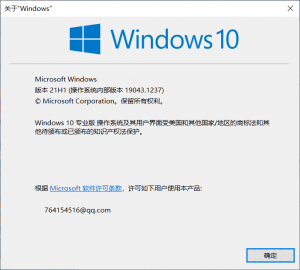
So if you want to upgrade through the official Windows update process but have not yet received the prompt, that is fine — just make sure you are running the latest Windows 10 21H1 release and then wait patiently. Microsoft will have the Win11 update ready for broad rollout by next year at the latest.
If you do receive the system update through Windows Update, congratulations — you can go ahead and try installing it. That said, we also advise backing up important data in advance, in case the update causes data loss or corruption.
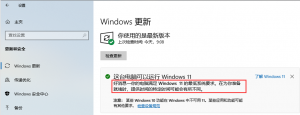
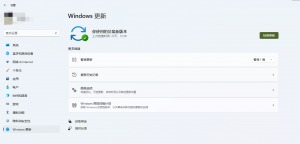
▲ Start menu >> Settings >> Update & Security >> Windows Update, check for updates
2. Upgrade with the Windows 11 Installation Assistant from Microsoft’s official website
This is a method Microsoft officially recommends, though the Win11 general-availability image currently offered is identical to the Release Preview build (22000.194) provided earlier. If you have already installed the Release Preview version, there is no need to install it again — instead, try checking for cumulative or security updates.
Open Microsoft’s official website:
https://www.microsoft.com/zh-cn/software-download/windows11
Download the Windows 11 Installation Assistant, as shown below:
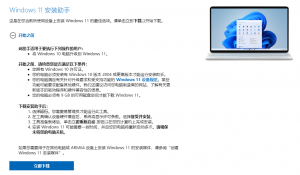
To upgrade with the Windows 11 Installation Assistant, make sure your PC:
- Has a Windows 10 license.
- Has Windows 10 version 2004 or later installed.
- Meets the Windows 11 device specifications for upgrade requirements and supported features. Some features may require additional hardware.
- You need at least 9 GB of available disk space to download Windows 11.
Once the download is complete, simply follow the on-screen prompts to finish the installation.
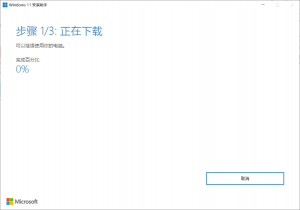
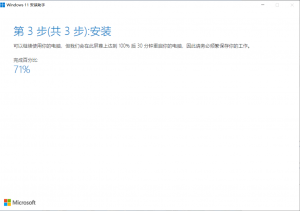
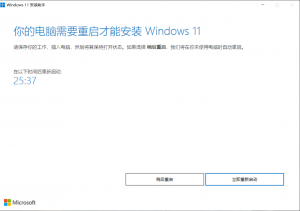
Then restart to complete the upgrade.

If you find bugs after upgrading, you can report them to Microsoft. If they seriously affect your daily use, please roll back to Windows 10.
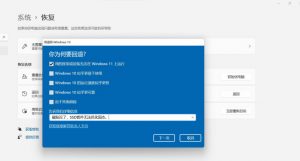
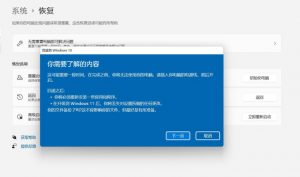
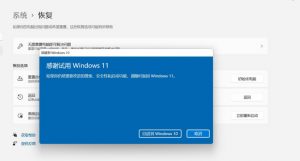
You can then return directly to Windows 10.
3. Upgrading by downloading a Windows 11 image
Open the official Microsoft website:
https://www.microsoft.com/zh-cn/software-download/windows11
Select the Windows 11 image you need to upgrade, choose “Simplified Chinese” as the language, and confirm.
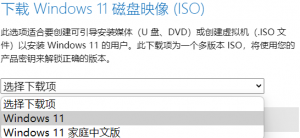
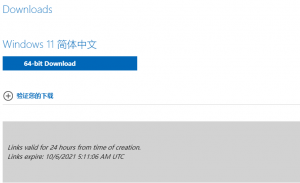
Once you have made your selection and confirmed it, the language section will turn into a download link. Because Windows 11 only supports 64-bit processors, only 64-bit image files are provided. A hash check is also available under “Verify your download” below.
Simplified Chinese: 47B8D4105BF48BA7A2827D037CCF1635035AFEFA48E168045F7B9D76F54DBE8F
You can then upgrade by burning a bootable drive or directly from the ISO file (stored outside the system drive); you can also use it to install on a virtual machine.
Note: upgrading via the image will erase all data on the C drive, and data on other partitions may also be affected. Be sure to back up all important data on the entire disk before proceeding!
4. Creating a Windows 11 bootable USB with the Windows 11 Installation Media tool to perform a clean install of Windows 11
Complete your backup first — for example, move files from your system drive to a non-system drive or a USB drive.
Open the official Microsoft website:
https://www.microsoft.com/zh-cn/software-download/windows11
Download the Windows 11 Installation Media tool, generate an ISO image, and upgrade, as shown below:
After the download is complete, run the MCT tool — preferably as administrator to avoid any issues. Then select the Windows 11 edition and language you need, and remember to uncheck “Use the recommended options for this PC.”
Next, choose whether to create a bootable drive (this will erase all data on the USB drive, so be sure to back up the USB drive’s data beforehand and make sure it contains nothing you need) or to generate an ISO image file directly.
Just wait patiently.
Once it is done, you can use the media you created to install Windows 11 on a physical machine or a virtual machine. Since we do not have a capture card, we will not include screenshots from this point on. Simply follow the normal installation steps to perform a clean install.