Foreword
This article explains how to understand the Debugging Metrics information on the AC controller’s Statistics page, and how to use that information to troubleshoot and resolve common Wi-Fi faults.
Introduction
In controller version 5.6.x, we added a new page, Debugging Metrics, to the Statistics panel. This new page is designed to make it easier for wireless administrators to pinpoint faults and resolve common Wi-Fi performance issues.
To use the Debugging Metrics feature, you need v.5.6.x or a later version:
- Open the controller
- Switch to the Statistics page
- In the drop-down, select “Debugging Metrics”
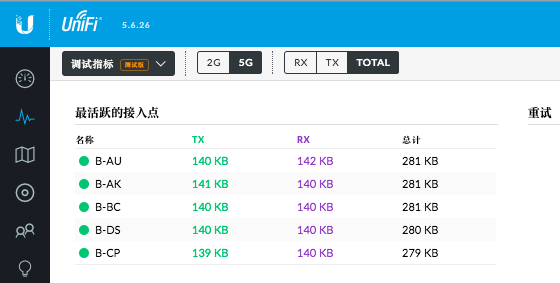
Debugging Metrics contains the following lists:
- AP Activity Ranking
- Retries
- Channel Utilization
- Client Load Ranking
- Interference Ranking
- Client Activity Ranking
- Client Connection Duration Ranking
- Memory Usage Ranking
- CPU Usage Ranking
Each list summarizes data for the 2.4 GHz or 5 GHz band, so wireless access points (APs) are required; some additional information requires a security gateway (USG).
This article describes in detail how to use the various fields on the Debugging Metrics page to identify and resolve common faults. In the sections that follow, we use these fields to point out potential faults, the common causes behind them, and their solutions.
Using Debugging Metrics Data
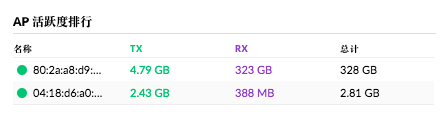
AP Activity Ranking
On this page you can see which APs in your network are sending/receiving most of the traffic. Tx represents transmitted packets, while Rx represents received packets. This helps you find out whether someone is misusing the network, or whether demand in an area is excessive and more APs are needed to share the load. Overusing an AP puts a heavy load on memory and CPU, degrading the performance of these overly active APs.
Common causes and remedies:
- Insufficient AP placement to handle heavy demand – If traffic remains consistently too high on one or several APs, add new APs to help share part of the traffic. Alternatively, consider moving nearby APs closer to the overused AP to help carry part of the client load.
- Client devices consuming excessive network resources – Sometimes an overly active AP is actually caused by one (or several) client devices consuming large amounts of bandwidth, such as P2P applications, online video, or malicious junk traffic. In such cases, you can use Deep Packet Inspection (DPI) to determine whether high-bandwidth applications are being used inappropriately on your network. Then decide whether to rate-limit them through a rate-limit group in the controller, or even block such devices from accessing the network entirely.
- Improper AP configuration – If one AP’s power is set too high while the surrounding APs are set lower, the stronger AP will connect more client devices and face greater interference, resulting in poor Wi-Fi performance. To solve this, try lowering the transmit power of the overly active AP, and if necessary raise the power of APs with fewer clients so that neighboring APs accept a comparable number of client connections.
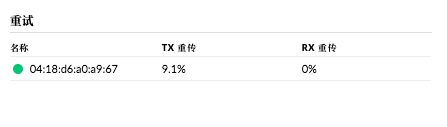
Retries
On this page you can see packets in the transmit direction (packets that had to be resent to client devices) and in the receive direction (packets that had to be resent to the AP). The retry rate represents packets that were corrupted on their way to the intended destination and had to be sent again.
Common causes and remedies:
- Interference – This is the most common cause of packet loss and retransmission. First determine whether retransmissions are higher on the 2.4 GHz or the 5 GHz band, or high on both. Then look at interference from other nearby APs. It may be caused by rogue APs, a very crowded RF environment, or a faulty client device sitting too close to the AP. To resolve this, try running an RF band scan and then switch the channel to a relatively clean one, or avoid adjacent-channel overlap with nearby APs. In addition, if the interference is found to be caused by a client device, it needs to be reconfigured or removed.
- Mismatched transmit power between client devices and the AP – Another common cause of packet retransmission is mismatched wireless transmit power (Tx). If the signal strength differs too much when the AP and the client device communicate, retransmissions are likely. If retransmissions are seen particularly in the receive direction, it is almost certainly caused by the AP signal being too strong.
- AP obstructed / too far from client devices – This often happens when APs are installed in corridors, above ceiling tiles, or in very large warehouses. When there is an obstruction or distance between the AP and client devices, the signal at the client becomes weak, and the client cannot transmit its signal back to the AP through the obstruction. We recommend adjusting the AP mounting position so it is as close to users as possible.

Channel Utilization
This page shows the AP’s most heavily utilized channels on 2G or 5G; the percentages in the last two columns show the AP’s own utilization.
Common causes and remedies:
- Interference: Suppose you see 59% channel utilization on an AP while it generates only 15% Tx/Rx itself — that proves channel reuse or interference is the culprit. In high-density/concurrent environments, use a narrower channel width where possible and try to avoid channel overlap.
- Legacy client devices / low transmission rates: If you see an AP with high channel utilization because it is generating a large number of Tx/Rx packets itself, check the “Most Active Access Points” list to see whether it is actually transmitting a large number of packets. If not, it is very likely that the Wi-Fi client devices are outdated: legacy devices negotiate very low rates and occupy a large amount of airtime, dragging down the AP’s throughput. If this is confirmed to be the cause, the best approach is to block such devices from connecting.
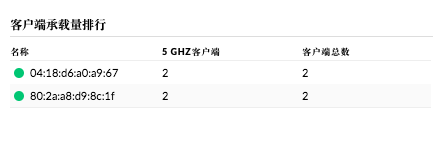
Client Load Ranking
The top entries show which APs carry the largest number of clients, and whether one band has noticeably more connections than the other. Overusing an AP degrades its performance, and exceeding the client limit on a single band should also be avoided. (Because the number of available channels differs, the client connection limit for the 2.4G band should be lower than for the 5G band.)
Common causes and remedies:
- Tx power level: In a high-density environment, if clients connect to APs other than the one you intended, it means the AP they connect to is set to too high a power level; lowering its transmit power will improve things considerably. Of course, it may also be that the other APs’ power is too low. This situation is usually caused by the shorter coverage range of 5G signals. If too many clients are connected on the 2G band, reduce or even disable these overused 2G bands.
- Overuse of the 2.4 GHz band: If you see too many 2.4 GHz clients connecting to the AP, you can also enable band steering on the AP (advanced features need to be enabled on the controller). On the AP carrying more clients, click > Configuration > > Band Steering > select “Prefer 5G” to enable band steering. After enabling it, observe whether more clients start connecting to 5G and whether performance improves.
- Improper AP placement / insufficient density: If one AP’s client count is persistently and significantly higher than all the others, consider moving the other APs closer, or adding APs to share the load.
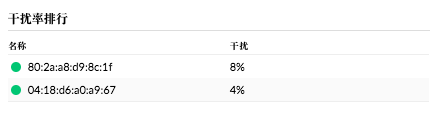
Interference Ranking
The Interference Ranking lists the APs facing the greatest RF interference. RF interference from other wireless devices affects the normal communication of your APs, and excessive interference seriously affects your wireless network. Pay particular attention to interference that stays in the double digits or higher — these will affect your network performance.
Common causes and remedies:
- Improper channel assignment: Depending on the current RF environment, the level of interference on each channel of each band varies. If you find the interference level too high, run an RF scan on the AP (a built-in feature), then manually assign 2.4G and 5G to wireless channels where interference has consistently been low. If the environment is highly congested, we strongly recommend using a narrower channel width (in any scenario, only HT20 is recommended for the 2.4 GHz band; in highly congested scenarios, HT20 is also recommended for the 5 GHz band). Also remember that channels must be assigned manually so as not to interfere with other UniFi APs, and channels must be kept separate to avoid adjacent-channel/co-channel interference.
- Improper transmit power settings: At some wireless coverage sites, if interference is unusually high even though the APs are positioned correctly and the channels are well planned, it may be that your APs’ transmit power is too low. Generally, at these locations, use a Wi-Fi analysis tool to check that the signal strength is above -65 dBm; if not, try setting the AP power to medium or high and see whether it improves. Note, however, that in some scenarios excessive transmit power can cause self-interference — for example, in rooms with stone, brick walls, or metal — and self-interference seriously degrades performance. In that case, lower the power and check again for improvement.
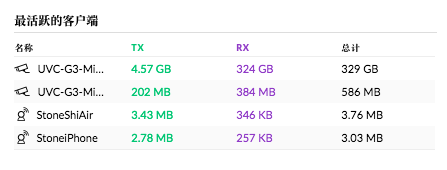
Client Activity Ranking
This list shows the clients consuming the most bandwidth on your network, helping you identify individual clients that are overusing the AP.
Common causes and how to respond:
- Network abuse / improper use – When a single device’s traffic is unusually high, it usually means that client is using the network heavily or improperly — for example P2P downloads, video downloads, or very large file downloads — or even deliberately disrupting the network. If a USG is deployed on your network, you can use deep packet inspection (DPI) to identify which applications these clients are accessing and determine whether they violate your network usage policy. Administrators can add these malicious clients to a rate-limiting group or block their network access.
- High-demand clients – Sometimes high bandwidth demand is unavoidable, for example from media servers or wireless surveillance. In such cases, if the services of normal clients are affected, you can restrict these high-demand clients to a specific network or dedicated access point. This serves them while keeping the Wi-Fi experience normal for other clients.
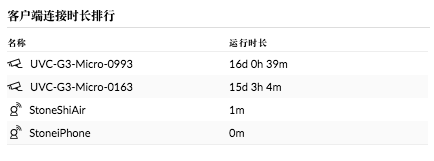
Client Connection Duration Ranking
The client connection duration ranking shows the clients that have been connected the longest on your network. It is also helpful for identifying network-wide issues, such as all clients having very short uptimes. It can also help you find devices that should not stay connected to the network for long periods, such as those in cafés or fast-food restaurants.
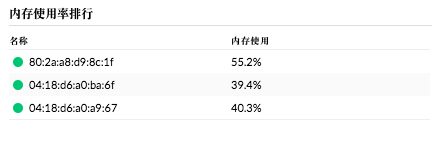
Memory Usage Ranking
The memory usage ranking represents the percentage of memory used by the AP hardware during operation. Devices often reach memory usage peaks when handling unusually high data volumes or encountering errors. Generally, high utilization or user demand leads to high memory usage. If you find memory usage to be severe, such as above 80%, it may affect client communications.
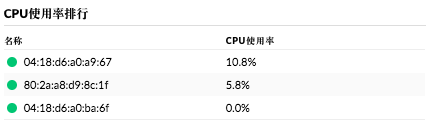
CPU Usage Ranking
The CPU usage ranking represents the CPU utilization of the AP hardware when processing resources over a given period. Similar to memory usage, higher CPU usage means the AP is overloaded. Unusually high CPU usage may be caused by an AP error or bug.